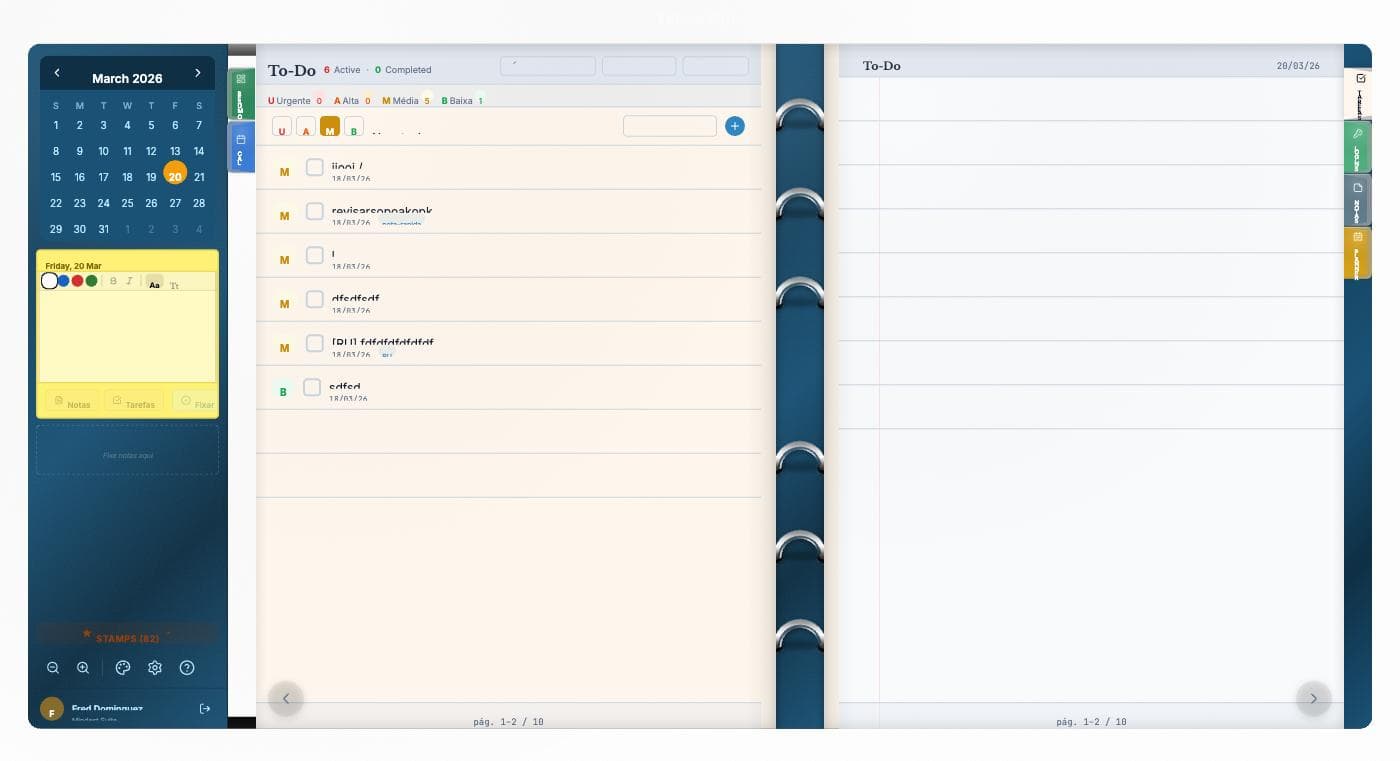
GTD (Getting Things Done) is one of the most influential productivity systems of the past two decades, built by David Allen. The premise is simple: nothing important should live only in your head. Everything goes into a trusted external system, gets sorted, and you execute with focus at the right moment.
Origin
David Allen published Getting Things Done in 2001, and the method has become a worldwide reference for personal task management. The core insight: the human brain is excellent at producing ideas and terrible at remembering obligations at the exact moment they matter. Once you offload everything into an external system, you free cognitive bandwidth to actually think.
The 5 GTD steps
1. Capture
Write down everything that grabs your attention — tasks, ideas, reminders, commitments — without judging. The point is to leave nothing in your head. Use a single trusted inbox.
2. Clarify
Process each inbox item by asking: is this actionable? If yes and it takes less than 2 minutes, do it now (the famous 2-minute rule). If it takes longer, delegate, schedule, or add to your next-actions list.
3. Organize
Distribute items into specific lists: Next Actions, Projects (anything with more than one action), Waiting For, Someday/Maybe, Reference.
4. Reflect
The weekly review is the most important GTD ritual. Every week you review each list, update next actions, and make sure nothing slipped through. Without the review, the system collapses.
5. Engage
With everything organized, choose what to do right now based on context (where am I, what tools do I have), available time, energy and priority. The system tells you what makes sense at this moment.
How to apply GTD inside Vulcan Organizer
- Frictionless capture — use the
Cmd+Nshortcut or AI Quick-add to jot anything in seconds. AI already infers due date, priority and category from natural text ("review client X contract by Friday"). - Unified inbox — the "No date" view works as the GTD inbox. Every new item lands there until you process it.
- Next Actions — the "Today" view + priority filters (shortcuts
1/2/3/4) show exactly what to execute now. - Projects — each Notebook is a project. Use the 48 built-in templates (Proposal, Meeting, OKRs, Briefing) as starting points.
- Waiting For — custom category "Waiting" + ⏳ stamp filters items that depend on third parties.
- Weekly review — the official "Weekly Review" template inside Notebooks + a recurring Sunday 6pm event triggered by the TAE.
Common mistakes
- Treating GTD as an app, not a habit. The weekly review is non-negotiable.
- Lists that are too long. If your Next Actions list has 80 items, you aren't really clarifying.
- Skipping contexts. GTD shines when you filter by context before picking the next action.
Variations and complementary methods
GTD works best paired with other techniques: use Pomodoro to execute with focus, Eisenhower to prioritize the inbox, and Time Blocking to protect deep work on your calendar.
Also see Bullet Journal if you prefer an analog version of the same principle (capture → review → migrate).
Next steps
Create a Vulcan Organizer account, import your calendar from Google, and use Quick-add to feed the inbox for a week. On Sunday, run your first weekly review. That's enough to feel the difference.